Foundations: the accessibility tree
There's a common misconception that when browsing the web using a screen reader, it's reading the actual screen. This is not really surprising, as the name suggests that's exactly what it's doing. And, this is what early screen readers did, so, we can't really blame anybody for thinking that!
There's also a slightly more informed misconception, that screen readers read the DOM (Document Object Model). Again, once upon a time they did, and some might still try to as a fallback. But with modern screen readers, they actually read something called the accessibility tree. And, using the browser's built-in developer tools, you can read it too.
Once you know what the accessibility tree is, and understand how to inspect it, a lot of the mystery around accessibility goes away. Screen readers stop being an unpredictable black box, and start being something that is a lot more predictable.
In this post we explore what the accessibility tree is, how the browser builds it, and how you can use it to better predict what a screen reader will actually announce.
How the accessibility tree works
When a browser loads a page, it builds several models which allow it to display, style, and track the states of the various elements you've defined in your code.
It takes your HTML and it builds the DOM. This acts as the source of truth, and the blueprint for everything else.
The browser also takes your CSS and builds the CSSOM (CSS Object Model). It uses this to decide how elements should be styled, for example what colours or fonts to apply.
Then, it combines the DOM and the CSSOM to create two more models:
- The layout tree: the elements which it needs to visibly show on the page
- The accessibility tree: the elements it needs to make available to assistive technologies, like screen readers
Both the layout tree and the accessibility tree are just a translation of the DOM, but filtered for a particular context. The browser walks through every element, decides whether it carries any meaning for the context of that particular tree, and either creates a reference node for it, or ignores it completely.
When the browser is creating the accessibility tree, it also assigns various properties to each node from the available information. The most important ones are:
- Name: also known as the accessible name, it articulates what the element is called, and how assistive technologies should refer to it
- Role: articulates what the element actually is, for example a button, a link, or a heading
- States and values: articulates additional information which is important for accessibility, for example, if it's currently checked, pressed, or expanded, or what text is currently in a text field
If those three bullets sound familiar, it's because they're the same three things named in the Web Content Accessibility Guidelines (WCAG) success criterion 4.1.2 Name, Role, Value (Level A). This criterion is technical, and it's very common to find failures against it, so it can be an intimidating one to deal with. But once you know how to read the accessibility tree, it actually becomes one of the easiest things to check.
How to inspect the accessibility tree
You can inspect the accessibility tree easily in Chrome and Firefox.
In Firefox, select "tools", "browser tools", then "web developer tools".
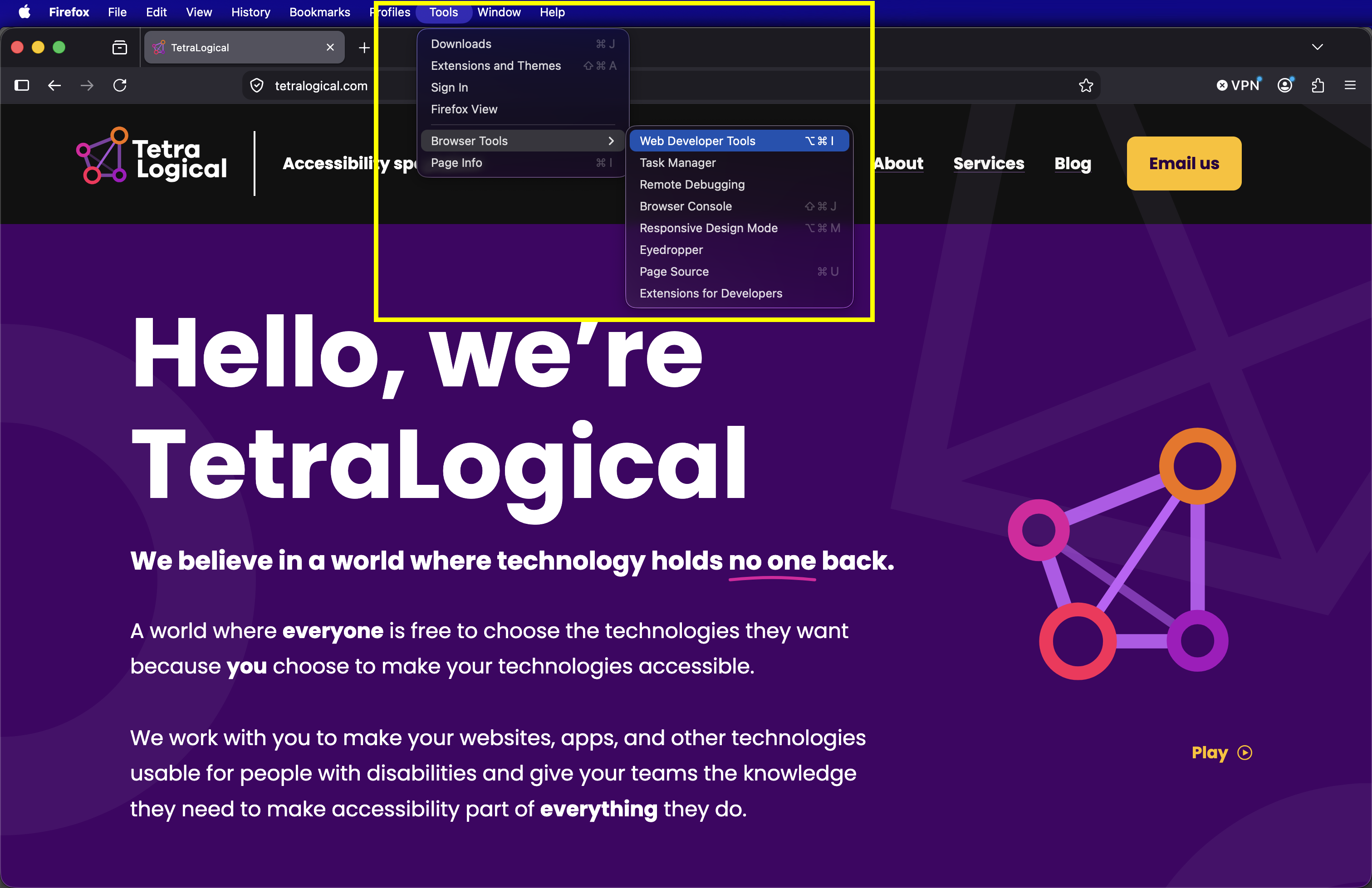
You should then be able to find a dedicated Accessibility panel showing the entire accessibility tree. It also has some built-in checks for things like missing names and contrast issues.
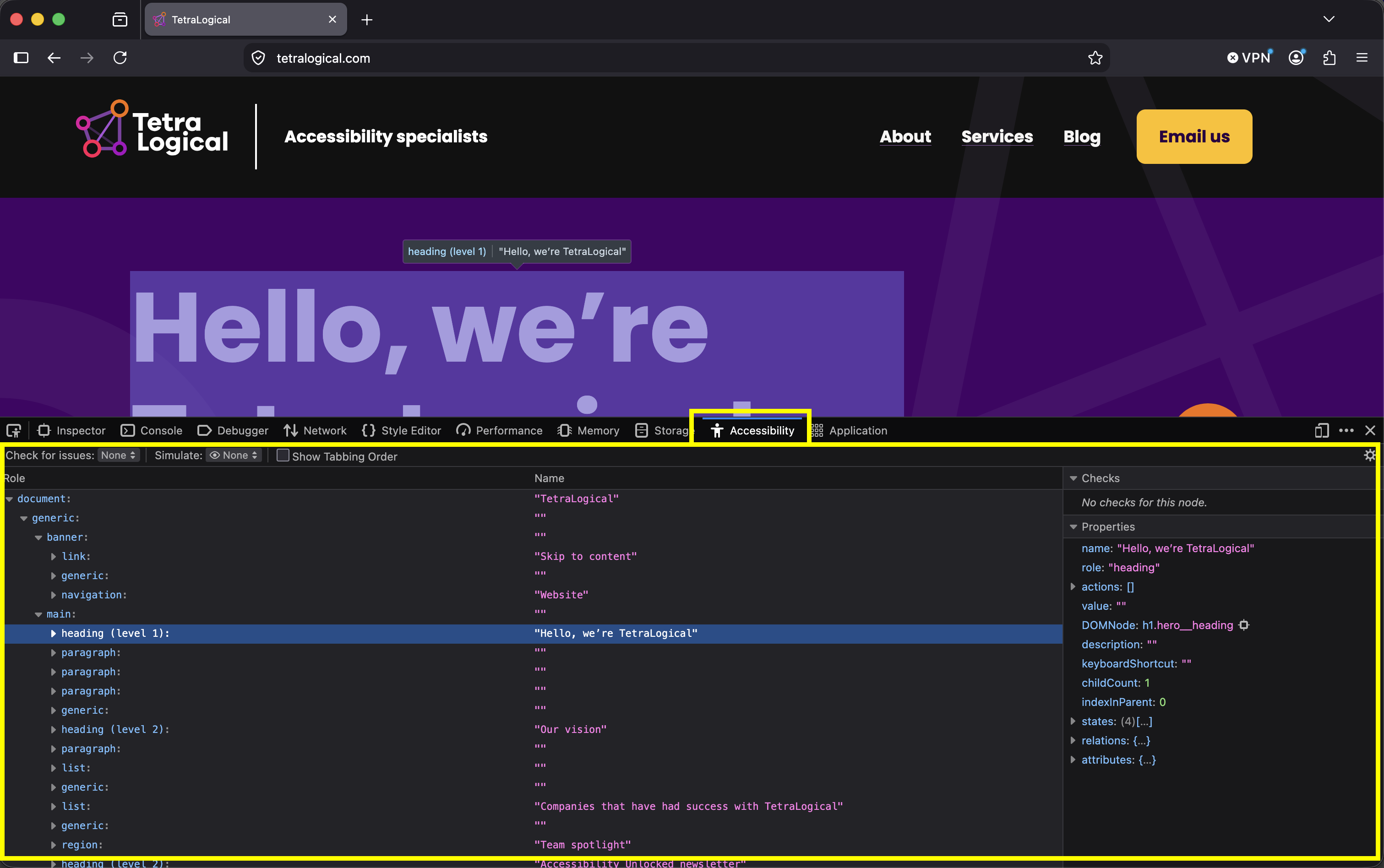
I like to use Chrome, so that's what I'm going to focus on, but you can read more about the Firefox Accessibility Inspector if that's your preferred choice.
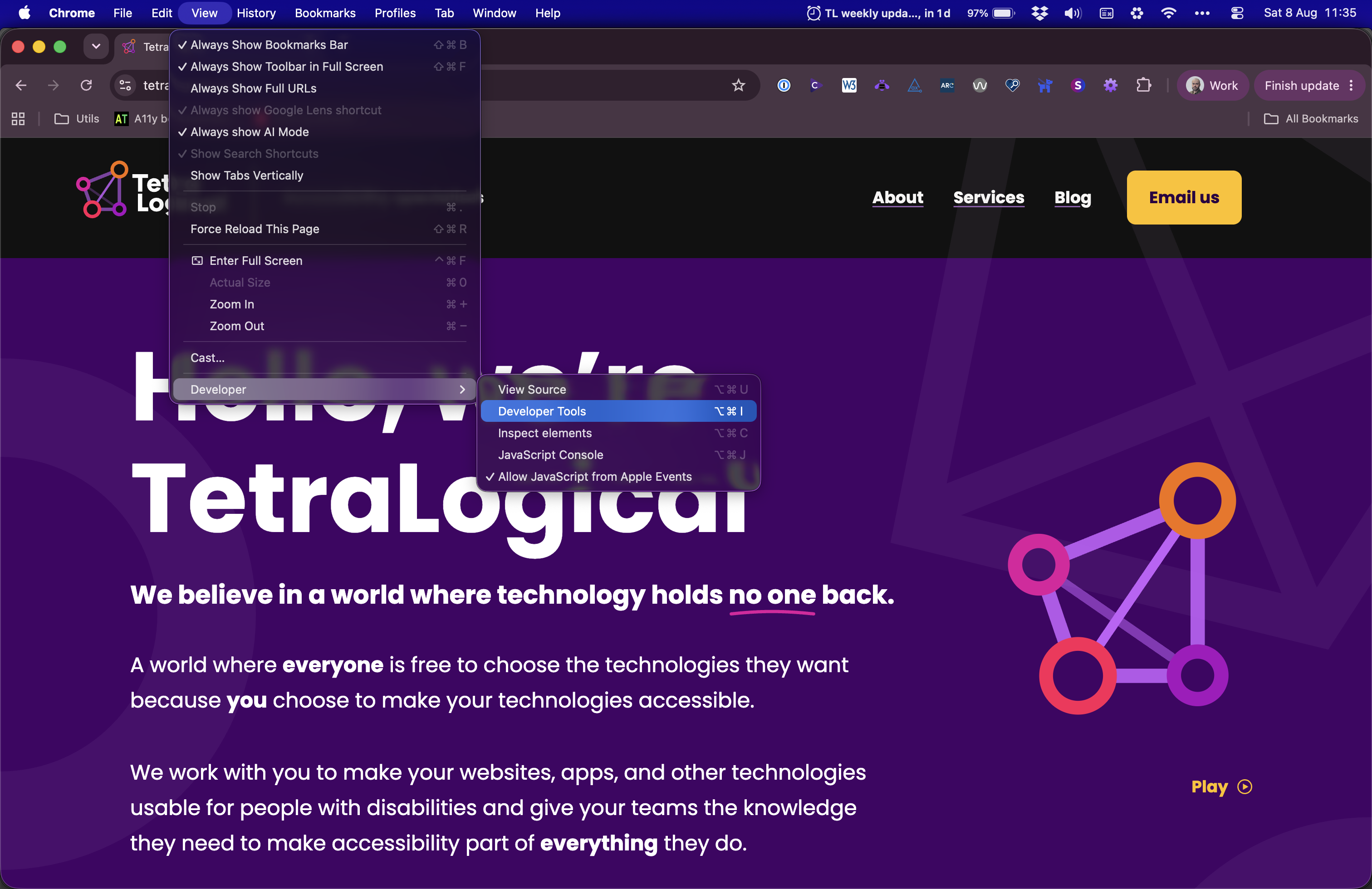
In Chrome, open dev tools by selecting "view", "developer", then "developer tools".
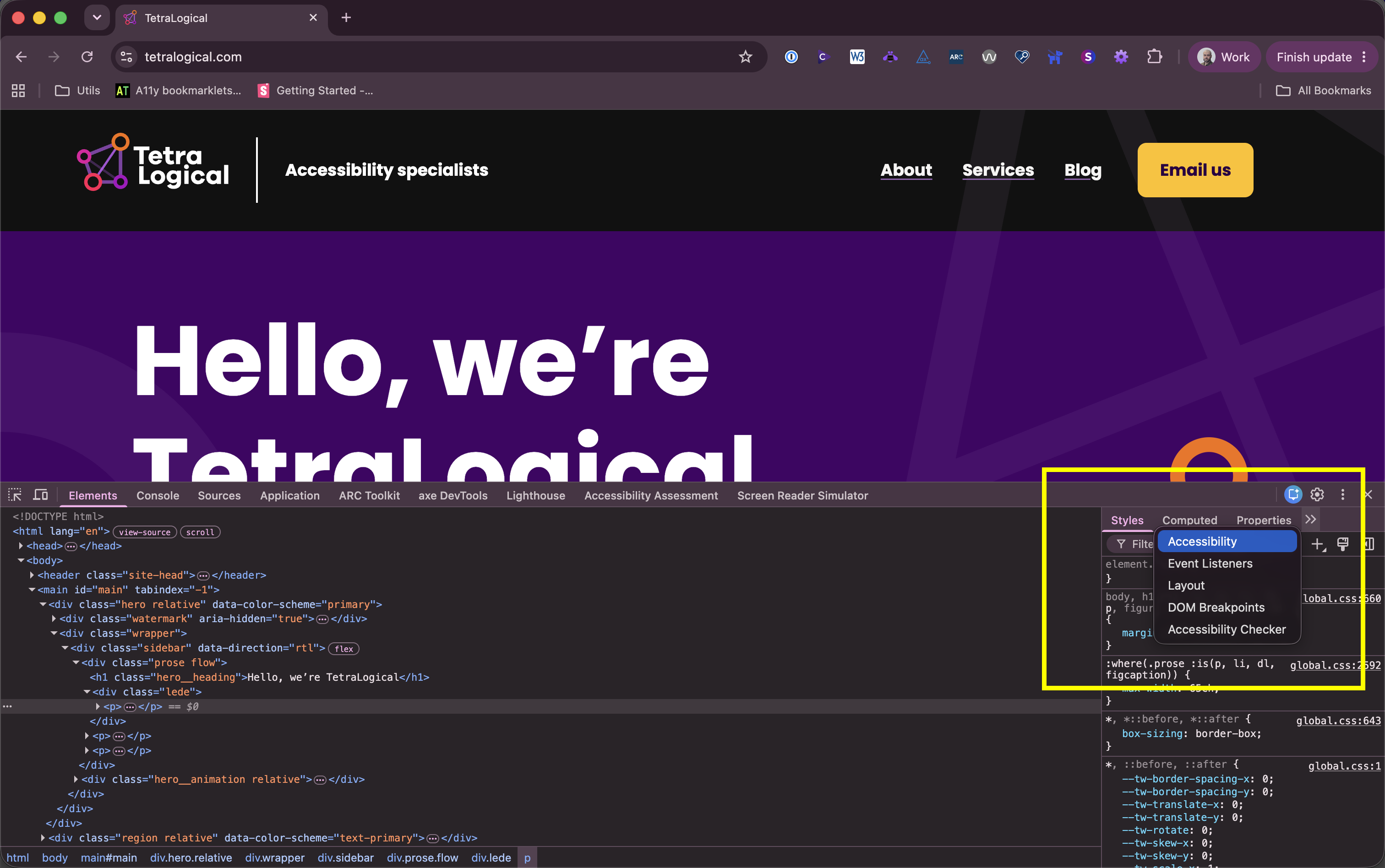
Look for the "Accessibility" pane, which sits alongside the tabs for "Styles" and "Computed". You may need to select the "more tabs" icon to find it.
Once you find the accessibility pane, you should find the accessibility properties for any element you select, and there is a toggle which you can turn on labelled "show accessibility tree".
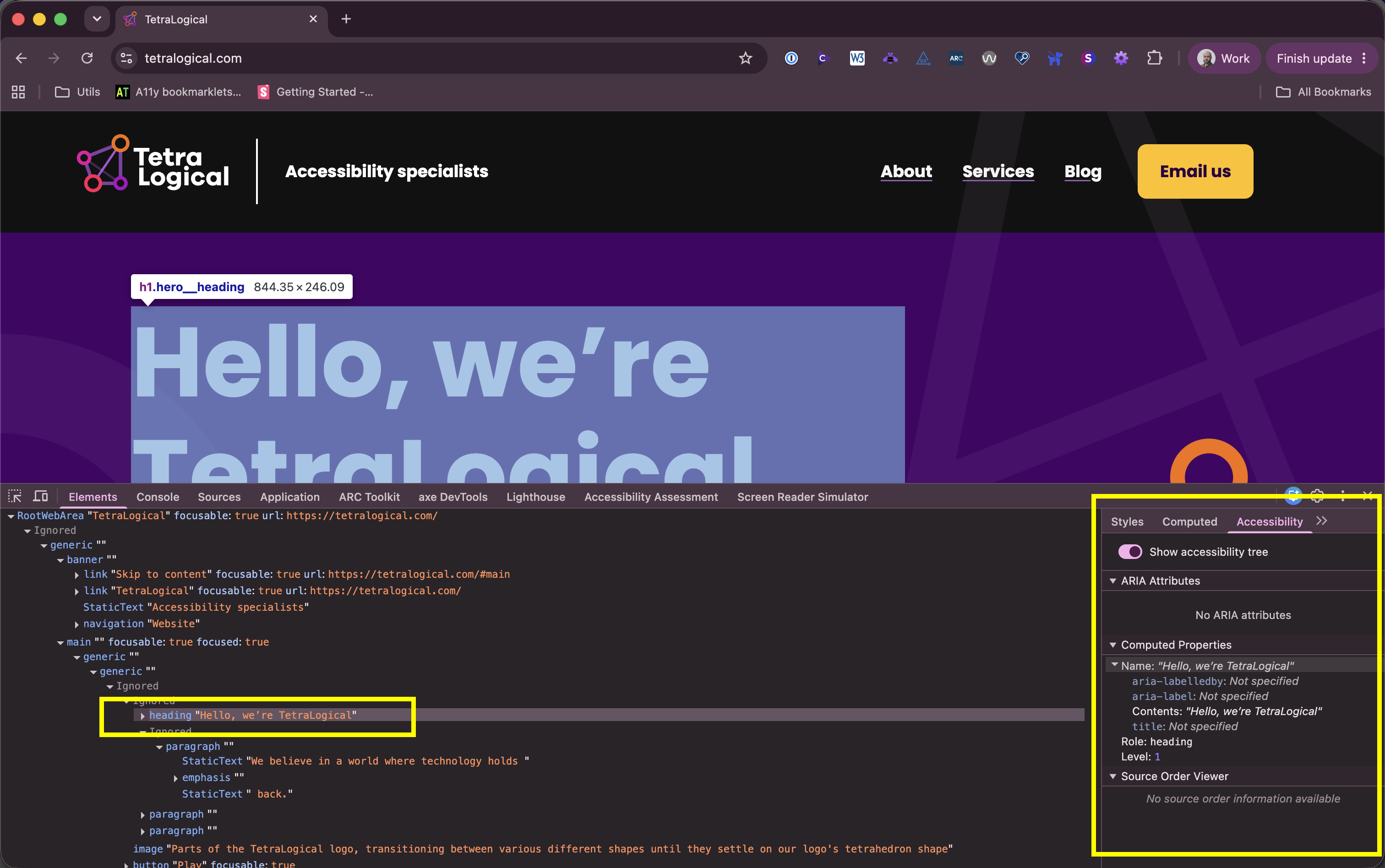
Like the DOM, the accessibility tree shows nested elements, and you can expand each element to view its children.
The order the elements show in the accessibility tree is the same order they will be read out by a screen reader, which may be different from the visible order, or the DOM order.
If you select an element, you can view its related properties in the accessibility pane, such as its name, role, states and values, which we'll talk about in a bit more detail.
Names, roles, states and values
Every node in the accessibility tree gets its properties from somewhere. The browser works them all out by following the rules outlined in Accessible Name and Description Computation, WAI-ARIA, and the HTML Accessibility API Mappings.
The browser will look at the various HTML attributes and CSS styles for each element, and do a bunch of calculations under the hood to decide which properties to apply.
Name
The name can come from a few places. Native HTML attributes and content, like alt and <label>, or ARIA attributes like aria-label. However, there is a hierarchy as to which one the browser will use. If you've assigned more than one, it will keep the highest ranking name, and everything else is discarded. It looks roughly like this:
aria-labelledbyaria-label- Native HTML
title
You can read more about names in Foundations: accessible names and descriptions
Role
The role usually comes from the type of HTML element you chose. For example, a <button> is automatically assigned a role of "button", and a paragraph, <p>, is automatically assigned the role of "paragraph".
Sometimes though, the element is not enough to determine the role. For example, a link, <a>, is only assigned the role "link" if you give it a href attribute. So again, using semantic HTML is important.
We can also override the role using the role attribute. If we assign the role of "button" to a link, for example <a role="button" href="…">, it would appear as a button in the accessibility tree, but everything else about its appearance and its behaviour would stay the same.
You can read more about roles in Foundations: HTML semantics
States and values
States and values can come from native HTML attributes, for example, checked, disabled, or value. They can also be assigned many more states using ARIA attributes, like aria-expanded or aria-current.
You can read more about ARIA attributes in Foundations: introduction to WAI-ARIA
Comparing the DOM and the accessibility tree
The easiest way to see the difference between the DOM and the accessibility tree is to look at the same component in both places.
For example, if we look at a native checkbox and its label in the DOM, it might look something like the following:
<label for="tl-rfK683586384m-terms-and-conditions" class="flex items-center gap-2 text-sm font-medium text-gray-700 dark:text-gray-200">
  Accept terms and conditions
</label>
<input id="tl-rfK683586384m-terms-and-conditions" type="checkbox" checked class="h-4 w-4 rounded border-gray-300 text-blue-600 focus:ring-2 focus:ring-blue-500" />
If you read this, and you try to work out what a screen reader might announce, it can be quite challenging. You'll need to:
- Figure out the name by:
- Finding the
forattribute on the label - Finding the
idattribute on the input - Manually matching the
forandidvalues
- Finding the
- Figure out the role from the
typeattribute - Figure out the state from the
checkedattribute - Figure out if it's keyboard focusable by:
- Understanding the
<input>element is focusable by default - Checking for a
tabindexattribute - Checking for an
inertattribute - Checking for a
disabledattribute
- Understanding the
However, if we look at the exact same component in the accessibility tree, along with its computed properties in the accessibility pane, it's much easier. The accessibility tree looks like the following:
checkbox "Accept terms and conditions" focusable: trueAnd the computed properties shown are:
Name: "Accept terms and conditions"
Role: checkbox
Invalid user entry: false
Focusable: true
Checked: true
Labeled by: label
So, instead of two elements, 14 classes and a generated ID to sift through, we just have to look at a single node. And, to do this, we didn't have to do anything clever. The browser knows HTML elements, so they pretty much just translate themselves, which is why we always advocate for using them wherever possible.
Most of the work involved in building and maintaining a good accessibility tree is just using HTML as it was intended, and then letting the browser do its job. This will help you to see how it exposes things to assistive technologies and to predict how they will work.
With screen readers, it's unlikely you'll be able to predict word-for-word what each one will say, because they're all slightly different, and they have their own configurable verbosity settings. But, reading the accessibility tree will get you closer than reading the DOM, and it's very good at telling you quickly when something is missing or incorrect.
The accessibility tree is not just for screen readers
One last thing worth clearing up is that the accessibility tree isn't just a feature for screen readers. Screen readers are just one of the types of assistive technology which use it, but there are others. For example, voice control software like Windows Voice Access, so when you say "click Continue" it finds and selects the correct control. Other accessibility tools will also use the accessibility tree, like browser extensions and automated testing tools.
These tools all work because the browsers accessibility tree is exposed to the operating system's accessibility API. For example:
The operating system APIs have to do their own translations, and they don't always match what the browser shows. Which is why we always recommend testing with assistive technologies.
How to inspect these APIs and see what they're doing is probably a different post for a different day. But, if you did want to start inspecting how the accessibility tree in your browser gets exposed to your operating system, you can use aViewer Modern/Moderno by Steve Faulkner on Windows. Or, on Mac, you can use XCode's Accessibility Inspector.
Tips
Here are our top five tips for using the accessibility tree:
- Check the name, role and status of elements, make sure they aren't incorrect or missing
- Check the reading order for assistive technologies, as it can be different to what is visible on the screen or in the DOM
- Check that no important elements have been accidentally hidden from assistive technologies
- Check that no decorative elements have been accidentally exposed to assistive technologies
- Don't try and micro-manage the accessibility tree with dozens of ARIA attributes, use native HTML wherever you can, and let the browser do its thing
We also maintain screen reader HTML support tables, so you can quickly look up how different screen readers announce the various elements.
Summary
- The accessibility tree is a filtered, translated version of the DOM, which the browser builds specifically for assistive technologies
- Screen readers read the accessibility tree, not the actual screen or the DOM
- HTML and CSS are translated into the DOM and CSSOM, which informs the accessibility tree
- Changes made with JavaScript will also affect the accessibility tree
- Every node in the tree has computed properties, the most important being its name, role, and states
- The browser exposes the tree through the operating system accessibility API, so voice control and other assistive technologies use it too
- You can inspect the tree in the developer tools easily using Chrome or Firefox
Related WCAG Success Criteria
- Success Criterion 1.3.1 Info and Relationships (Level A)
- Success Criterion 4.1.2 Name, Role, Value (Level A)
Further reading
- Accessibility tree, MDN
- Accessible Name and Description Computation 1.2, W3C
- HTML Accessibility API Mappings 1.0, W3C
- Accessibility APIs: a key to web accessibility, Léonie Watson and Chaals McCathieNevile
- Understanding semantics, Léonie Watson
- Accessibility reference, Chrome DevTools
- Accessibility inspector, Firefox
Next steps
Read more accessibility foundations posts or find out more about our Assessments, Training, and Consultancy.