Should native app screen titles be headings?
Many screens in native apps include a screen title that summarises the contents of the screen, but these titles are often not identified as headings to screen readers. In this post, we look into some of the reasons why this might be the case, and why this is an example of the challenges involved in applying WCAG to native apps.
Why headings are important in native apps
Well-defined headings help everyone understand and navigate content. Visually, headings allow people to scan content to see how it is structured and to find the information they require. On touchscreen devices, people browsing with a mobile screen reader can access this information by navigating from heading to heading using explicit gestures.
Ensuring headings are identifiable by assistive technologies is covered by WCAG Success Criterion 1.3.1 Info and Relationships (Level A). This success criterion requires that authors use appropriate semantic techniques to convey information and relationships so that assistive technologies communicate this information correctly to their users.
For example, if text has the visual appearance of, and acts as, a heading - that is, the text is large and bolded and positioned immediately above the related section of content - then that text should be appropriately identified as a heading in code so that assistive technologies can convey the appropriate information.
However, there are some differences between the way headings are identified on native apps, and how they are identified on the web. While a web developer can determine a page's overall heading hierarchy through the strategic use of h1 to h6 elements, the concept of heading levels does not - at the time of writing - exist for native apps on Android. The device's built-in screen reader will indicate when a text snippet represents a heading, but it won't convey the heading level. The situation is different on iOS, and in the SwiftUI framework in particular, where developers can use .accessibilityHeading(.h1) through to .accessibilityHeading(.h6) alongside the .accessibilityAddTraits(.isHeader) property to provide a heading hierarchy similar to web pages.
Note about WCAG and native apps
WCAG was originally aimed at web content. However, many international laws and regulations - such as Section 508 in the US and the European Accessibility Act (EAA) in Europe - incorporate WCAG to define accessibility requirements for digital content more broadly. Therefore, the way content is implemented is irrelevant. A native app must conform to WCAG in order to meet these laws and regulations, even when the app uses no web-based technologies at all.
Is a screen title semantically a heading?
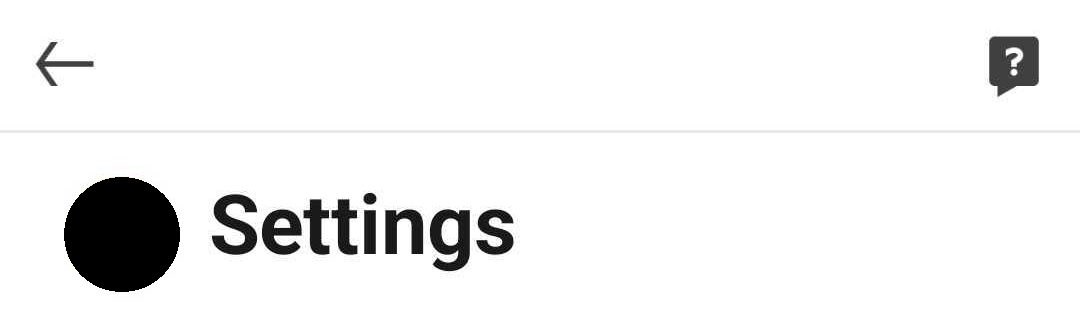
Individual app screens often include an explicit screen title that summarises the content of the screen. Screen titles usually appear in the app bar. They are often positioned immediately after a Back button or hamburger menu button, and before a set of common controls that appear on all screens, such as a settings or profile menu button.
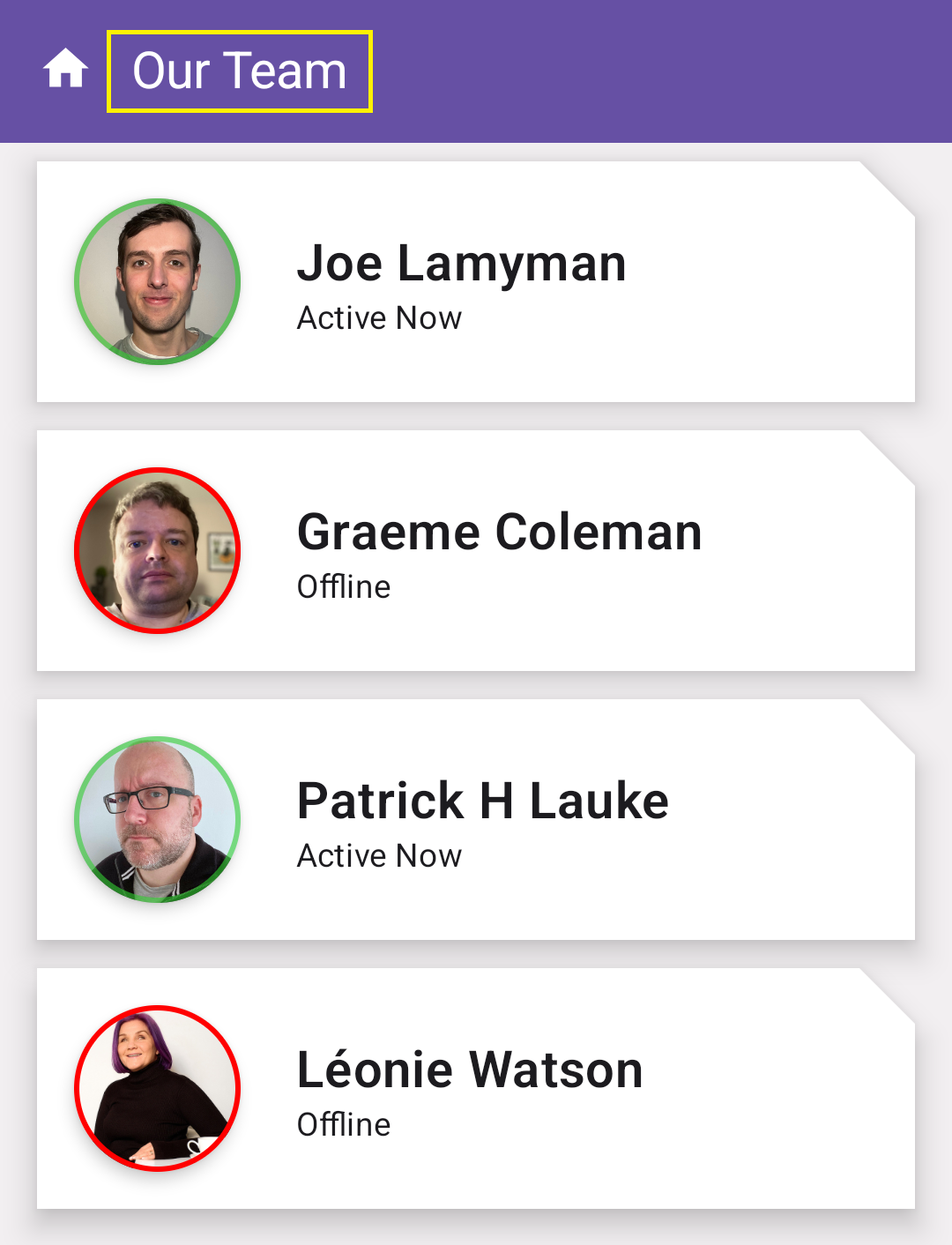
As screen titles in native apps are analogous to the main <h1> heading of a web page, the screen title in a native app should also be coded as a heading. This is based on the wording of the associated WCAG success criterion (my emphasis):
Information, structure, and relationships conveyed through presentation can be programmatically determined or are available in text.
Due to its positioning on the screen and its styling, the screen title is conveyed through presentation as a heading and thus must be programmatically determined as such.
However, this isn't always the case.
An experiment
Encouraged by discussions I had with like-minded native app developers, I wanted to find out how common it was for developers to programmatically identify screen titles as headings.
To do this, I worked with two of my TetraLogical colleagues (Catriona and Dean) to set up an experiment. I began by randomly choosing five popular apps that were already installed on my iOS device, and (where possible) Catriona and Dean selected the equivalent apps that they had installed on their Android devices.
For each app, we chose a single screen that included an app bar. This meant choosing a settings, privacy, or user account-type screen, as such screen titles most commonly appear on screens of this type. We also made sure to include one of Apple's and Google's own apps in the test suite. For the former, this was the App Store. For the latter, this was the Play Store.
The iOS apps were tested on an iPhone 11 Pro running iOS 26.4. The Android apps were tested on two Android-based devices: a Google Pixel 6 running Android 16 and a Xiaomi 11 Lite running Android 14. In all cases, we tested the most up-to-date versions of each app.
The following tables summarise the apps we tested.
iOS apps
| App | Screenshot |
|---|---|
| App Store |  |
 |
|
 |
|
 |
|
| EE |  |
Android apps
| App | Screenshot |
|---|---|
| Play Store |  |
 |
|
 |
|
 |
|
| Lebara |  |
For each app, and in the absence of specific app inspection tools, we used two features included within the device's built-in screen reader to check if the screen title was exposed as a heading.
Firstly, we navigated to the screen title using swiping gestures. When the screen title received focus, we expected the screen reader to announce the related text, followed by the word "heading" to signify that the screen reader recognised the text as a heading. For example: "Settings, heading".
Of course, just because the screen reader announces the text as a heading, this doesn't necessarily mean that the screen title's role has been set correctly. For example, the developer may have incorporated the text "heading" into the element's accessible name instead. While this approach isn't entirely wrong, it prevents people from using additional features built into the screen reader that require the role to be set correctly, so we do not encourage it. Hence, we also used heading navigation features built into both TalkBack (Android) and VoiceOver (iOS) to navigate directly to the screen title while focus was elsewhere on the screen. On iOS, this involved using the VoiceOver rotor. On Android, this involved using reading controls.
We didn't conduct any additional accessibility testing on any of the apps.
Findings
Our findings are summarised in the following tables.
Note: please do not use our findings as a way of criticising the developers of these apps. As I will discuss shortly, the reasons behind these results may be beyond the developers' control.
iOS app results
| App | Screenshot | Announced as a heading? |
|---|---|---|
| App Store | |
 |
|
|
|
|
|
|
|
|
|
| EE | |
|
Android app results
| App | Screenshot | Announced as a heading? |
|---|---|---|
| Play Store | |
 |
|
|
|
|
|
|
|
|
|
| Lebara | |
|
Discussion
This is obviously not a scientific experiment, and our findings are limited to a small selection of apps. A larger test suite may have resulted in a more varied set of results.
That said, the difference between iOS and Android apps in our experiment is remarkable. The screen title in all of the iOS apps tested is exposed to VoiceOver as a heading. On Android, however, the only app that appears to support the use of an actual semantic heading for screen titles is WhatsApp; all other headings effectively fail WCAG Success Criterion 1.3.1 Info and Relationships (Level A).
With this in mind, I tried to think about why this might be the case. In no particular order, here are some of the reasons I came up with.
Note: I am not suggesting there are direct links between the above results and the reasons I give below. As indicated above, there may be other reasons for why these screen titles are not identified as headings.
Reason 1: lack of appropriate documentation for developers
Ever since the release of WCAG 1.0, multiple articles, blog posts, tutorials, and other types of documentation aimed at helping people to develop accessible web-specific content have been produced. This has led to an improvement in the accessibility of web content in particular over the past quarter of a century.
Unfortunately, the same cannot be said for developing accessible native apps. Despite native apps having been around for nearly twenty years, there are comparatively fewer resources for developers to help them ensure that they are actually creating native content that meets the related WCAG success criteria. Most "how-to" guides for creating accessible native apps tend to only cover more general accessibility guidance, such as avoiding issues relating to colour contrast and knowing when and how to provide text descriptions for images, without diving deeper into technical implementation. Therefore, even if there is a technical way to implement accessible content, developers may simply not know about it due to this lack of documentation and guidance.
Pleasingly, steps are already being taken to close this gap. For example, the Guidance on Applying WCAG 2 to Non-Web Information and Communications Technologies (WCAG2ICT) is a W3C Working Group Note that provides informative guidance on applying WCAG to non-web technologies. The similar Guidance on Applying WCAG 2.2 to Mobile Applications (WCAG2Mobile), currently a W3C Group Draft Note, is explicitly concerned with native apps. Individual websites such as Appt and MagentaA11y include a multitude of excellent resources and code samples to help developers of native apps meet WCAG. While again this represents a smaller well of resources when compared to accessible web development, hopefully this represents a useful starting point for generating an upsurge in related documentation for native apps.
Reason 2: the "Google / Apple does it too" defense
I decided to include default Google and Apple apps in the test suite to tackle a statement we often encounter when we record a particularly contentious accessibility issue: "But Google / Apple doesn't do that!".
Using Apple's and Google's own apps as a starting point for designing apps is good practice, as they often use established patterns that people are accustomed to. Both corporations have introduced open-source design systems and guidelines to help organisations implement such patterns, including Google's Material Design design system and Apple's Human Interface Guidelines.
Yet, while both corporations dominate the space, they can get it wrong just like the rest of us. Just because their own apps don't use headings where they should, this doesn't mean that you shouldn't either.
Reason 3: a breakdown in the accessibility social contract
Development of accessible interactive content, whether a website, document, or native app, doesn't exist in a vacuum. For content to be accessible, there needs to be a social contract between the developer, the vendor of the developer's chosen development framework, the vendors of user agents and operating systems that ultimately render the content, and the vendors of assistive technologies that people may need to use to access this content. For this to happen:
- The developer should follow the appropriate standards required to make their content accessible
- The development framework should support the developer in using these standards to help them create accessible content
- The user agent / operating system should support the connections between the developer's code and appropriate representations in the accessibility API
- The assistive technology should make use of the accessibility API to convey the correct information about the content to its users, and to provide associated functionality to help them access and operate this content
If everyone in the chain fulfills their individual responsibilities, users will receive the information they require. However, problems arise when there is a break in the chain. If the developer hasn't followed appropriate standards, or the development environment doesn't actually support the appropriate standards, the user agent or operating system - in conjunction with the accessibility API - may expose content incorrectly to assistive technologies. The assistive technologies, taking their lead from the accessibility API, won't convey correct information about the content to their users, potentially preventing them from completing related tasks.
Alternatively, if the developer has worked hard to ensure that their code follows the necessary specifications that should result in an accessible experience, they will not be rewarded if an individual assistive technology fails to support the specification. Ultimately, it'll be the end user of the assistive technology who loses out.
For web content, this accessibility social contract is already very robust. The vast majority of HTML features used for designing user interfaces are accessibility supported by most browsers, while WAI-ARIA is not far behind. This includes the use of these features on both iOS and Android, where the implementers of browsers like Safari and Chrome, and assistive technologies like VoiceOver and TalkBack, have stepped up.
For native content, however, the picture is a lot hazier. For non-web software, which includes native apps, the Guidance on Applying WCAG 2 to Non-Web Information and Communications Technologies (WCAG2ICT) states the following when applying SC 1.3.1 Info and Relationships to non-web software:
In non-web software, programmatic determinability is best achieved by using the accessibility services of platform software to enable interoperability between the software and assistive technologies and accessibility features of software.
Yet, for Android developers, the ability to programmatically identify headings at code level was only implemented in Android-9.0. Even then, when using the XML View framework, the android:accessibilityHeading="true" attribute can only be applied to TextView views within the app's main content section. It is theoretically possible to modify the Toolbar's default title so that it is exposed as a heading, but it is not trivial. This means that, even if developers wanted to identify the app title as a heading, they cannot easily do so.
Since then, Google have released the Jetpack Compose framework for creating native apps, and have made it much easier to identify the screen title as a heading. By default, the developer must explicitly identify the screen title as a heading, typically by adding a semantics modifier to apply a heading role to the text, analogous to using the <h1> element in HTML:
Text(
    text =
    stringResource(R.string.settings_heading),

    style = MaterialTheme.typography.title,

    modifier = Modifier.semantics {
        heading()
    }
)
However, it is possible that the developers of those apps are using a framework that, like Google's previous development framework, does not allow developers to identify the screen title as a heading. An alternative, more prosaic, reason may be that - as argued in the previous section - the framework supports the identification of screen titles as headings, but the framework's documentation doesn't clearly indicate this to developers who use it.
The opposite appears to be true for iOS apps, where each screen title was correctly announced as a heading during our experiment. By default, when using the .navigationTitle method within a view in SwiftUI to indicate the screen title, iOS' accessibility API immediately treats this as a heading, which means that VoiceOver will always announce screen titles that use this method as a heading. Given this is the default method for identifying screen titles in SwiftUI, this likely contributes to the high success rate in our iOS apps (although note that we were not able to identify which frameworks were used to develop these apps).
Going forward
Although I have concentrated on screen titles in this post, I believe it opens up further discussions and opportunities for considering accessibility within native apps.
For those of us who work in digital accessibility, we already recognise that there's a need for us to broaden our minds beyond the web alone, by keeping up with developments in native app frameworks.
For app developers, I recommend becoming familiar with websites like Appt and Magentaa11y, and sharing your experiences developing accessible native apps with others. How did you implement a complex widget within your app so that it could be used with an external keyboard and therefore meet Success Criterion 2.1.1 Keyboard (Level A)? How did you prevent text in your app from overlapping when resized, thus meeting Success Criterion 1.4.4 Resize Text (Level AA)?
For native app framework developers, ensure that your framework helps developers to create accessible content, providing clear guidance on when and where to use certain techniques. Demonstrating how using your framework can more easily help developers to meet WCAG would also be helpful.
Further reading
- Does WCAG 2.2 apply to native apps
- Heydon Pickering: Listen To Me And Not Google
- Adrian Roselli: I Don't Care What Google or Apple or Whoever Did
- CVS Health: Android View Accessibility Techniques - Heading Semantics
- CVS Health: iOS Swift Accessibility Techniques - Headings
Next steps
For more information about the Web Content Accessibility Guidelines, read our WCAG primer or find out more about how our assessments can help you identify issues in your websites, mobile apps, design systems, and other products and services.
Updated: 11 August 2026